
Register through the official KuCoin website or an app opened from a link on the official website. Check the developer name, choose a unique password, and confirm that the service supports your country.
Accounts and digital-asset wallets
Open an Account and Transfer Assets with KuCoin
Website and app guidance for registering through official channels, securing the account, using the Funding Account, and checking the network before a transfer.
Create an account through an official channel
Do not enter login details through a link sent in a message or by an unknown person.
Complete account requirements and enable security
Complete the identity-verification steps shown on the account page, enable two-factor authentication, and configure withdrawal security before transferring funds.
Service availability and limits depend on your country and account-verification level.
Use the Funding Account for deposits and withdrawals
In the app, tap Deposit on the home screen or open Assets → Deposit, then select the asset, following the KuCoin crypto deposit guide. Assets used for deposits, withdrawals, or P2P are held in the Funding Account. If your balance is in the Trading Account, use Transfer within KuCoin to move it before withdrawing.
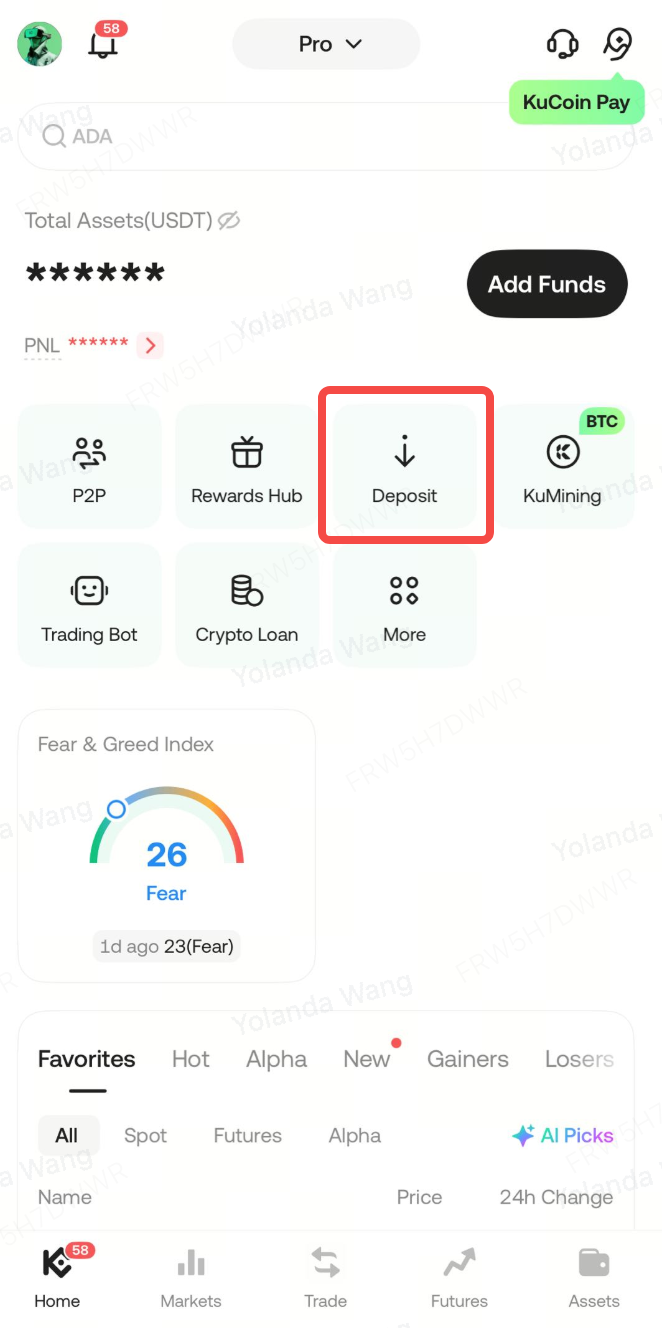
A transfer between KuCoin accounts is not an on-chain transaction.
Choose a network supported by both sides
Select the asset first, then compare the network name on KuCoin with the XAUUSD.RUN deposit or withdrawal page and make sure every character matches. If the destination requires a memo or tag, enter it in full. Then copy the address and compare its first and last characters.
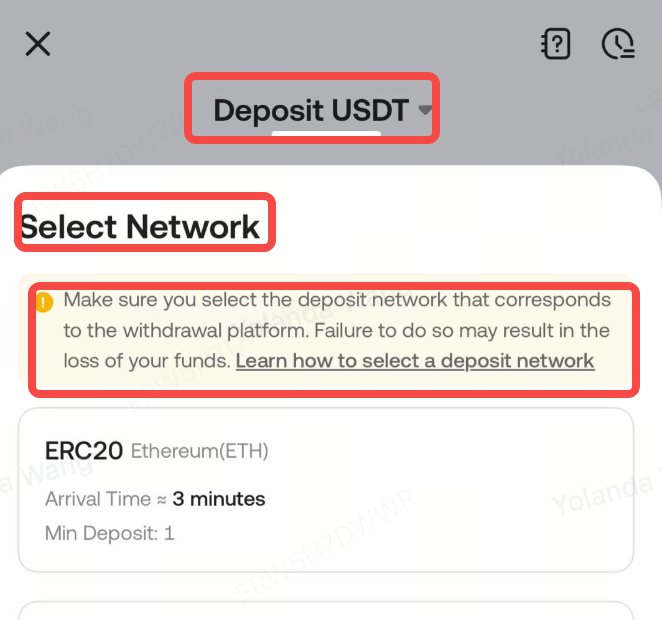
Do not choose a network solely because its fee is low if the destination does not support it.
Review the summary and save the TxID
When depositing into KuCoin, copy the address or scan the QR code from the page for the selected asset and network. Before withdrawing, review the amount, fee, net amount, address, and network before confirming. After sending, save the TxID and track it in transaction history.
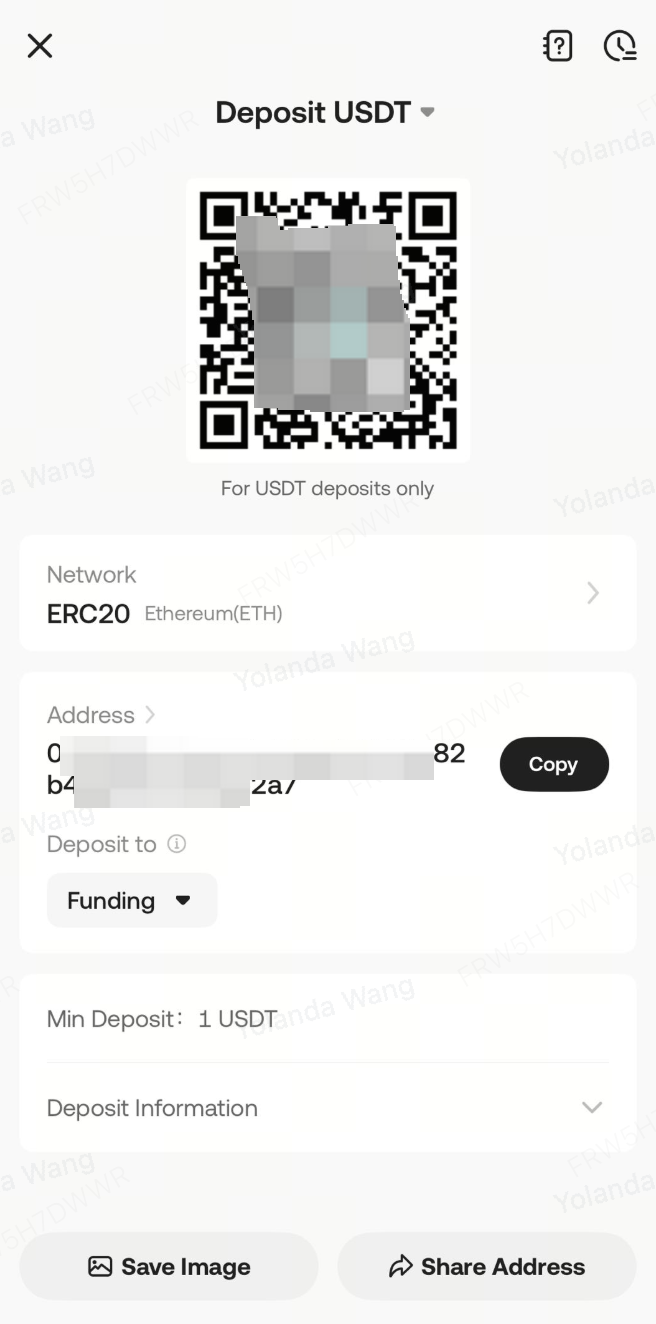
Never use an address or QR code from a guide image. Copy it only from your own account page.