XAUUSD.RUN

Accounts and digital-asset wallets

Open an Account and Transfer Assets with Binance

Website and app instructions covering official registration, account security, and correctly matching the asset, network, and address.

Create an account and verify the domain or app

Register only through the official Binance website or an app opened from a link on the official website. Check the app developer, choose a password you do not use for any other service, and confirm that the service supports your country before you begin.

Steps and menu names may vary by country, account type, and app version.
Never send your password, passkey verification code, or backup code to anyone.

Verify your identity and protect the account

Complete the identity-verification steps shown by Binance, then enable a passkey or two-factor authentication and review signed-in devices before depositing or withdrawing.

Identity-verification requirements and available services depend on your country and account status.

Find the asset deposit or withdrawal menu

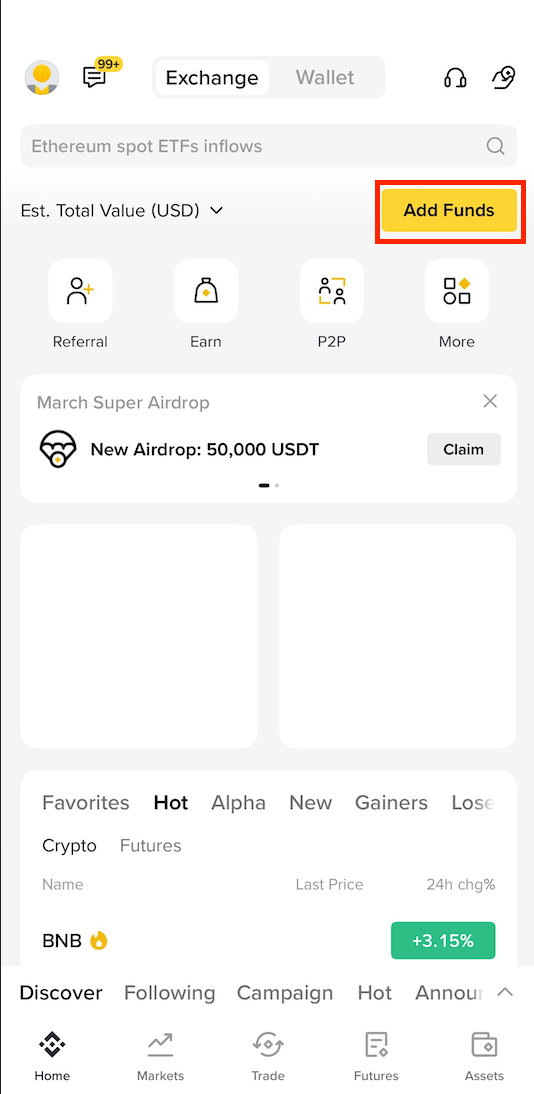
In the app, tap Add Funds and choose Deposit Crypto to receive assets into Binance. To send assets out, open Assets, select the coin, then choose Withdraw and Send via Crypto Network.

See the latest steps in the Binance crypto deposit guide.

The Binance app home screen showing the Add Funds button

Menu names may change between versions. Confirm whether the transaction is a deposit or withdrawal before proceeding.

Check the asset, network, and address

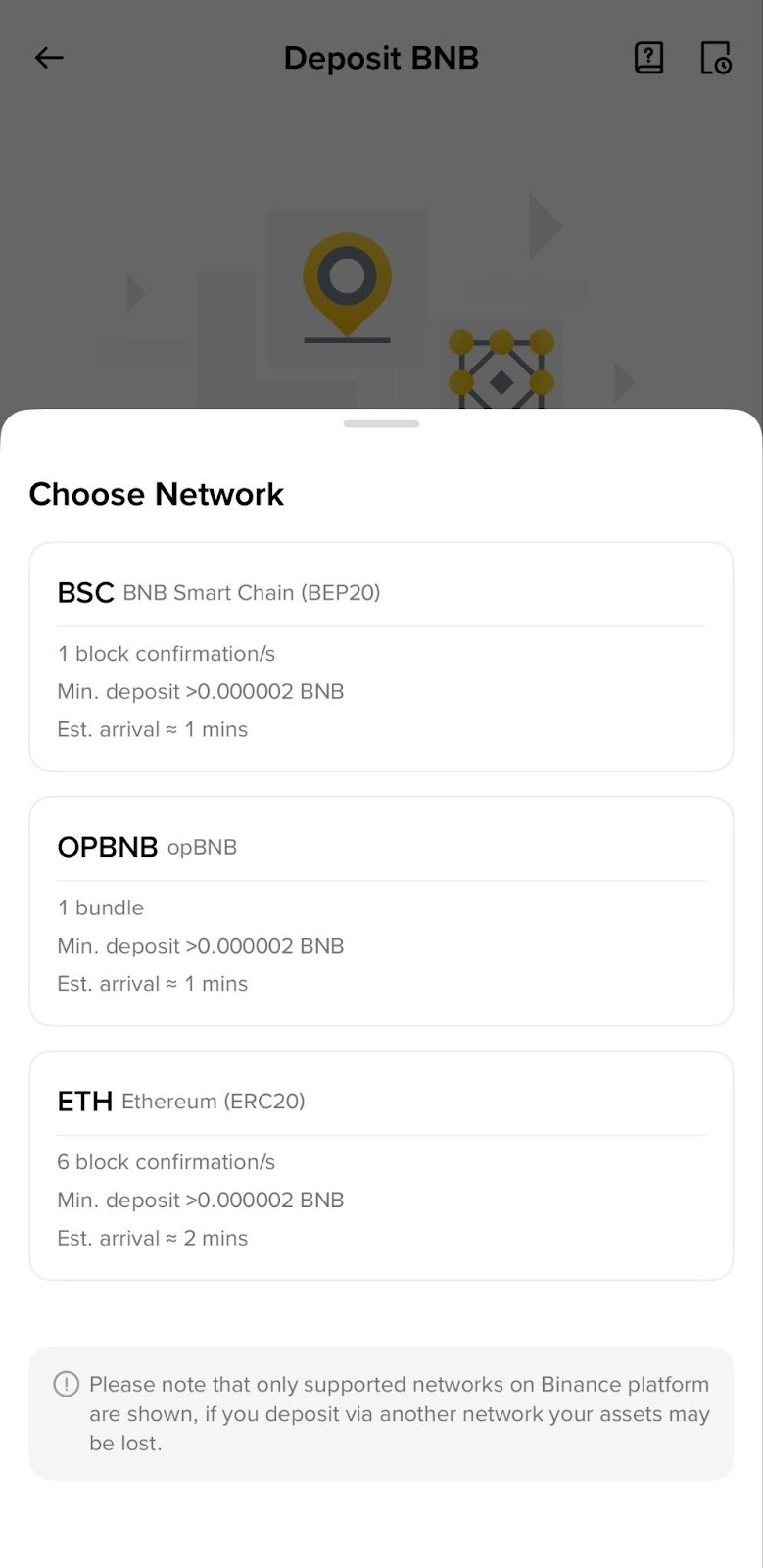
Select the asset first, then choose a network supported by both the sending and receiving sides, matching every character. If the destination requires a memo or tag, enter it in full. Copy the address instead of typing it, then compare its first and last characters again.

The Binance screen for selecting an asset deposit network

Using a different network or sending the wrong asset may cause permanent loss of funds.

Confirm the details and track the status

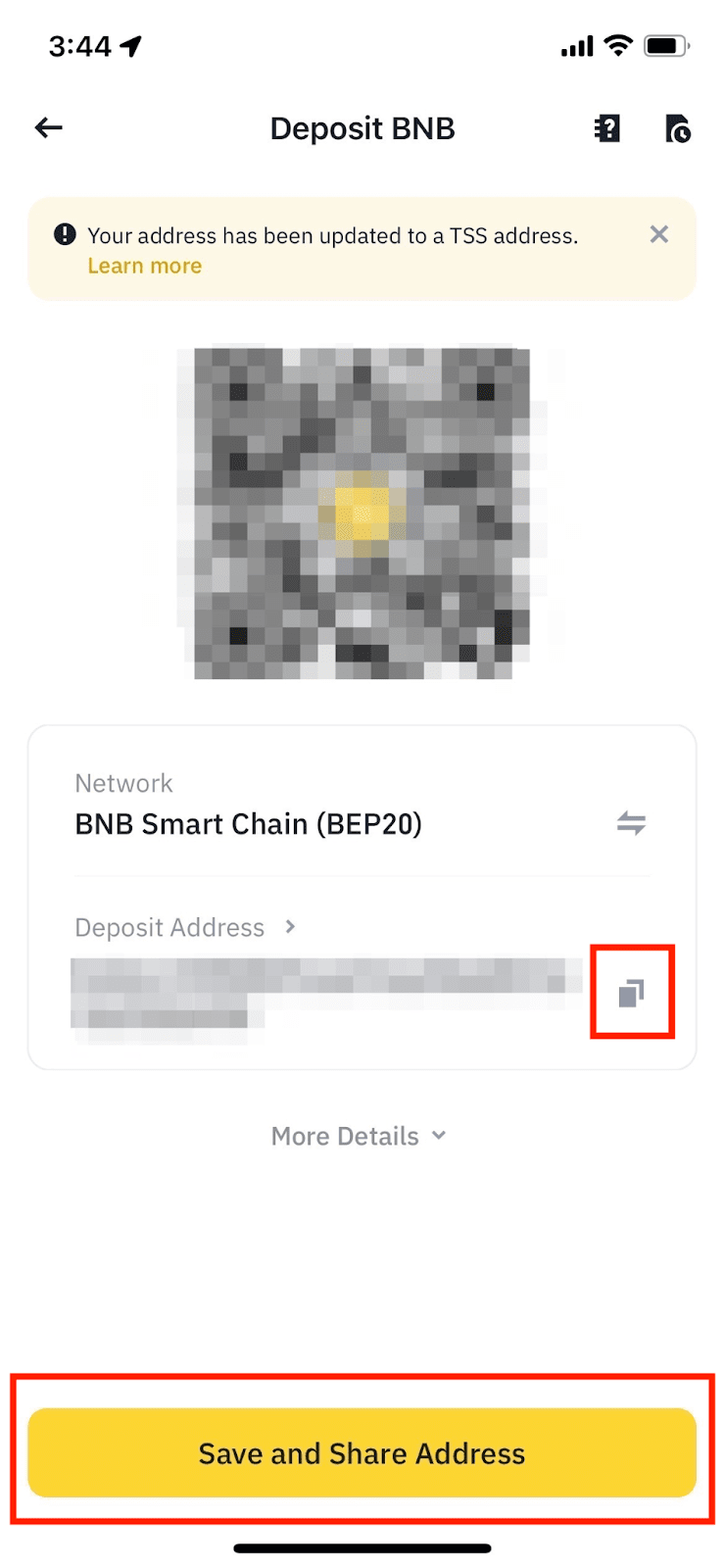
Before depositing, copy the address or scan the QR code from the page for the selected asset and network. Before withdrawing, review the amount, fee, net amount, address, and network on the confirmation screen. Complete the requested passkey or two-factor authentication, then track the TxID in transaction history.

The Binance screen showing the network, deposit address, and QR code

Never use an address or QR code from a guide image. Copy it only from your own account page.